Editorial guide · France
How does an online music lesson work?
Date:
Updated
An online music lesson is a remote meeting, not necessarily a prerecorded video to follow alone. The exact structure depends on the teacher and musical goal. The stages below are general points to confirm, not a promise that every lesson follows an identical programme.
1. Before the meeting: make the lesson possible
Dr Banerjee teaches in English, live on Zoom from India. Confirm the time, time zone and duration with him. Prepare the instrument, agreed materials and a charged device. For a child, arrange who can help with connection and framing without taking over.
For metropolitan France, use an explicit date and Paris local time; seasonal clock changes can alter the difference from a teacher elsewhere. Do not rely only on a remembered number of hours.
2. At the start: check listening and today’s need
A brief sound and camera check avoids working with missing information. Clear speech does not guarantee that every instrumental note is transmitted well. Mention dropouts rather than pretending to have understood.
Bring a specific question about your practice: a passage, instruction or rhythmic problem. This provides a starting point without prescribing what the teacher will choose to cover.
3. During the lesson: take turns and clarify
Transmission delay means taking turns is often clearer than trying to synchronise perfectly. Listen to the demonstration, try it, then check what needs to change. Ask for a different explanation when terminology is new.
A second camera angle may sometimes help, but do not buy equipment as a supposed requirement before discussing it. Official Zoom music-audio guidance explains possible settings for the platform Dr Banerjee uses for lessons.
4. Afterwards: know what to revisit
Before finishing, ask which small task deserves priority and how to recognise improvement. Write it in your own words. Do not assume recordings, emailed notes or between-lesson support are included without confirmation.
The individual lessons published here last 45–60 minutes; group lessons last 60–90 minutes. The free 15–30-minute introduction is a separate one-to-one session before enrolment, not one of those regular classes.
Separate technical failure from musical difficulty
A frozen screen, microphone-cut note and hesitation in a passage need different responses. Before attributing a problem to playing, describe the event: did the picture freeze, did sound disappear only on the call or did you lose a musical reference? Precise observation reduces misunderstanding.
If connection is unstable, put the instrument safely down before moving the device. Do not compensate for weak capture with excessive playing or singing tension. Feedback depends on what can be seen and heard; video cannot reproduce every aspect of physical presence.
Keep a brief note between appointments
Between meetings, keep a personal note of the passage, question to revisit and constraint encountered. This is not homework or reporting required by the offer. It simply avoids spending the next conversation reconstructing what was confusing.
Do not assume recordings, asynchronous corrections or permanent messaging availability are included. If sharing a file or recording interests you, ask what is agreed and what consent is needed. Direct contact is not a promise of continuous support.
Before the appointment, know how to rejoin the call and keep the agreed contact method nearby. If the picture freezes while sound continues, say so rather than continuing a demonstration nobody can see. A mobile connection can be tested, but its quality and cost depend on your plan. Do not assume an incident automatically results in a replacement or refund; applicable decisions and conditions need direct confirmation.
Frequently asked questions
Which platform is used for lessons?
Live Zoom, in English, with Dr Banerjee teaching from India.
Is the free introduction a regular lesson?
No. It is a separate 15–30-minute individual session before enrolment, not a regular paid lesson or group trial.
Does direct contact include continuous support?
No. A contact route promises neither asynchronous corrections, recordings nor permanent messaging availability.
Official resource and context
Zoom music audio settings: technical guidance for preparing sound for these live Zoom lessons.
Plan your next step
Plan what to do if the connection drops: bring one concrete observation to the first conversation.
One free 15–30-minute one-to-one introductory session before enrolment. This is not a regular paid class or a group trial.
Instruments · About the teacher
The form prepares a WhatsApp or email draft for you to send yourself. Opening a draft does not confirm a booking.
Continue reading
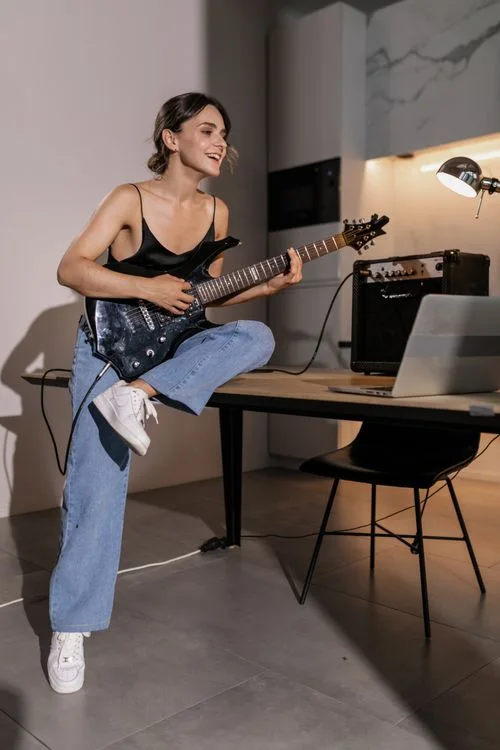
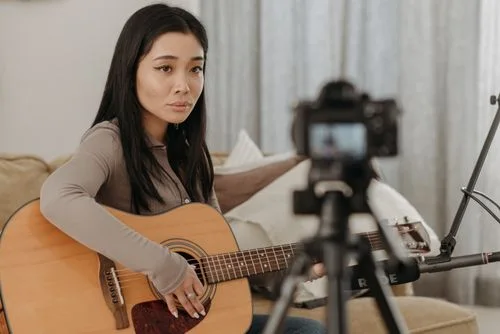
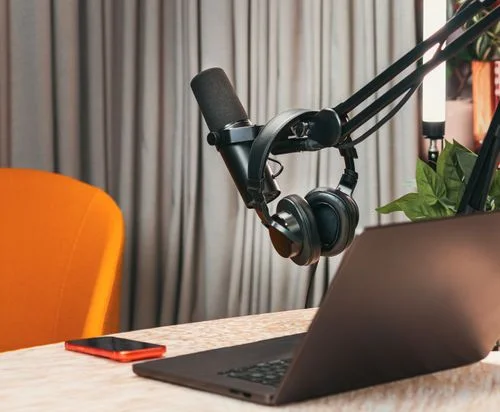
Photographs illustrate the topics; they do not show students, compulsory equipment or brand endorsements.